
Data Preparation Guide for Vesta
Vesta is designed to analyze data across space and time, helping you uncover patterns and trends in geographic data. Existing geospatial data in formats such as shapefiles can be imported directly into Vesta. But to get the most out of the software, your data needs to be properly formatted before import.
3 Steps To Get Your Data Ready
Geographic & Temporal Setup
Establish the foundation of your analysis by preparing geographic identifiers and temporal fields that Vesta uses to merge data with spatial boundaries.
Data Cleaning & Formatting
Import your raw data, subset large datasets to include only relevant variables and observations, and handle missing values.
Aggregation & Import
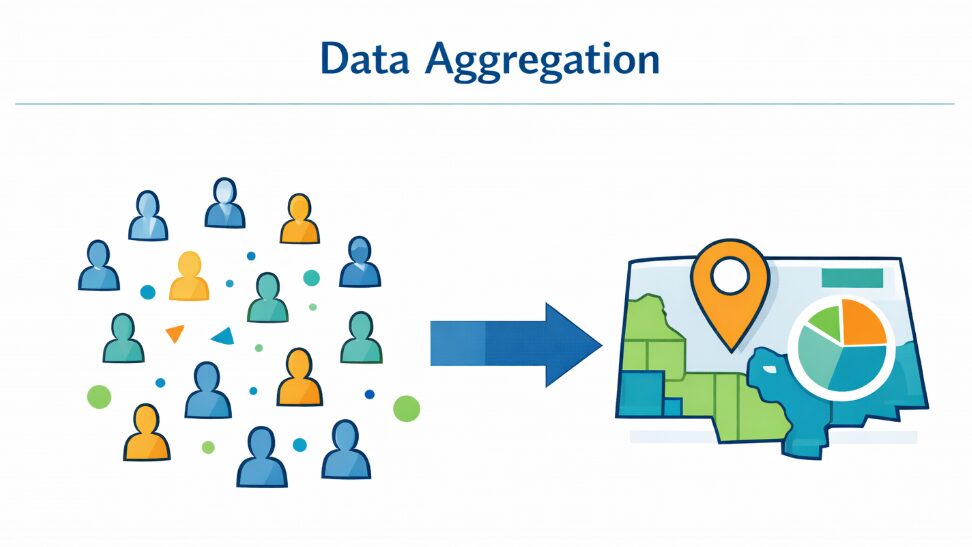
Aggregate individual observations to the geographic unit level using proportions, means, or medians—then import your prepared file into Vesta for analysis.
Setting Up Geographic Identifiers
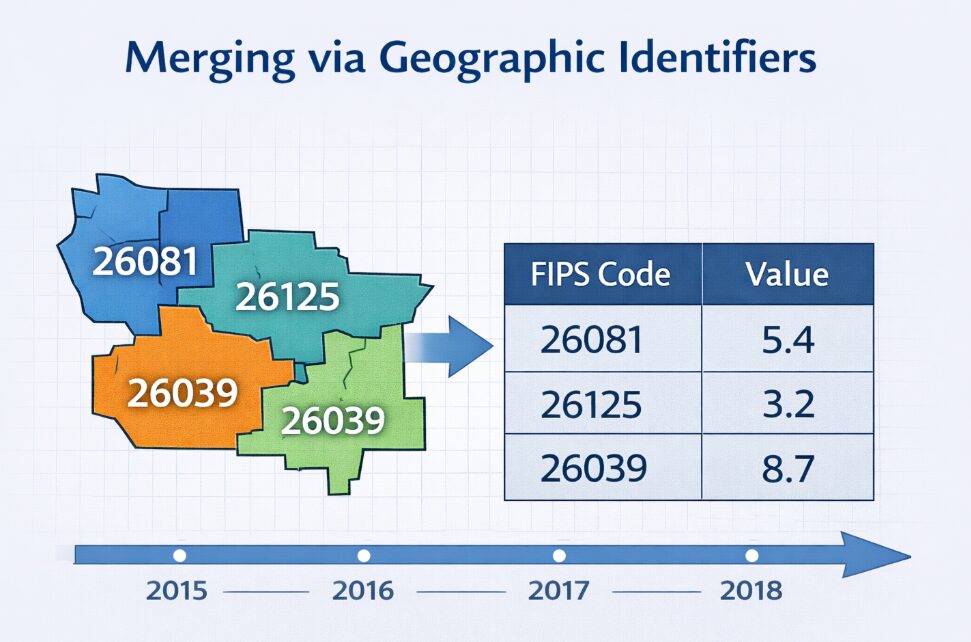
Every dataset you bring into Vesta needs a geographic identifier that links your attribute data (counts, rates, characteristics) to spatial boundaries. These identifiers are what allow Vesta to merge your data with shapefiles and render it on a map.
Common geographic identifiers include:
- State or County FIPS codes – Standardized numeric codes used by the U.S. Census Bureau
- ZIP codes – Useful for health data and consumer-focused analyses
- Census tract IDs – Ideal for neighborhood-level demographic studies
- Latitude/Longitude coordinates – For point-based data (must be in WGS 1984 format)
Working with Temporal Data
Temporal information is optional in Vesta, but when present, it enables the software to animate and analyze changes over time. If your data doesn’t include a time variable, simply select “Always Valid” during import.
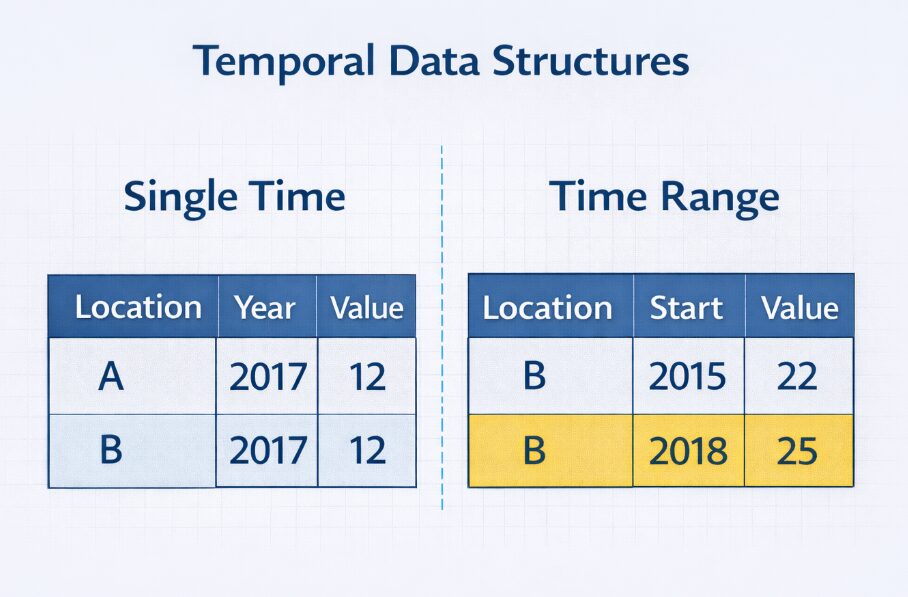
If your data spans multiple time periods, include a time variable so Vesta can determine when data changes. Supported formats include:
- Single year: YYYY (e.g., 2015)
- Full date: MMDDYYYY or MM/DD/YYYY
- Time intervals: Two columns for start time and end time
Cleaning and Formatting Your Data
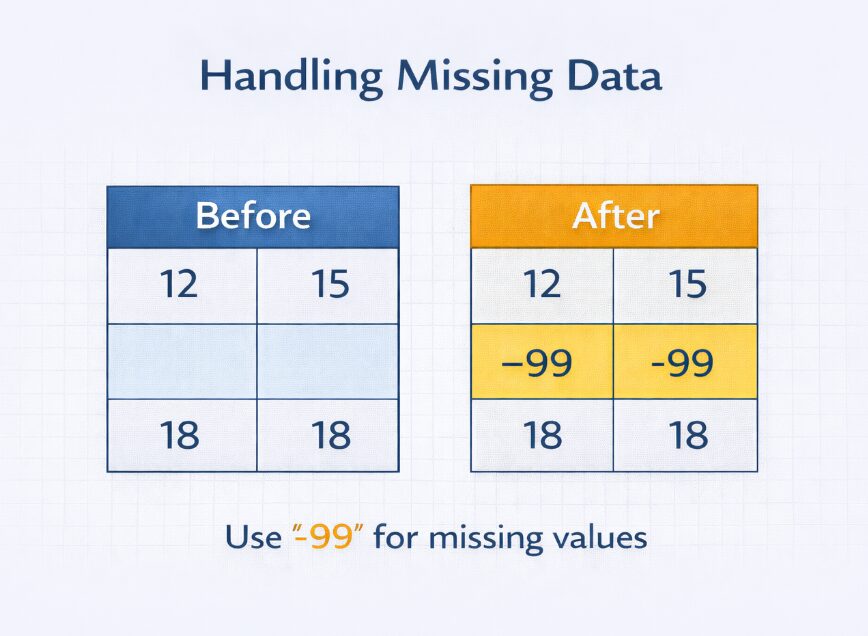
Before importing into Vesta, take time to clean and standardize your data. Start by importing your raw file into your preferred analysis environment (R, Python, SPSS, SAS) and always work on a copy—never the original. Replace missing values with a placeholder that won’t occur naturally in your dataset, such as -99, “-” or “NA”.
If your data spans multiple time periods, include a time variable so Vesta can determine when data changes. Supported formats include:
- Single year: YYYY (e.g., 2015)
- Full date: MMDDYYYY or MM/DD/YYYY
- Time intervals: Two columns for start time and end time
Subsetting Large Datasets
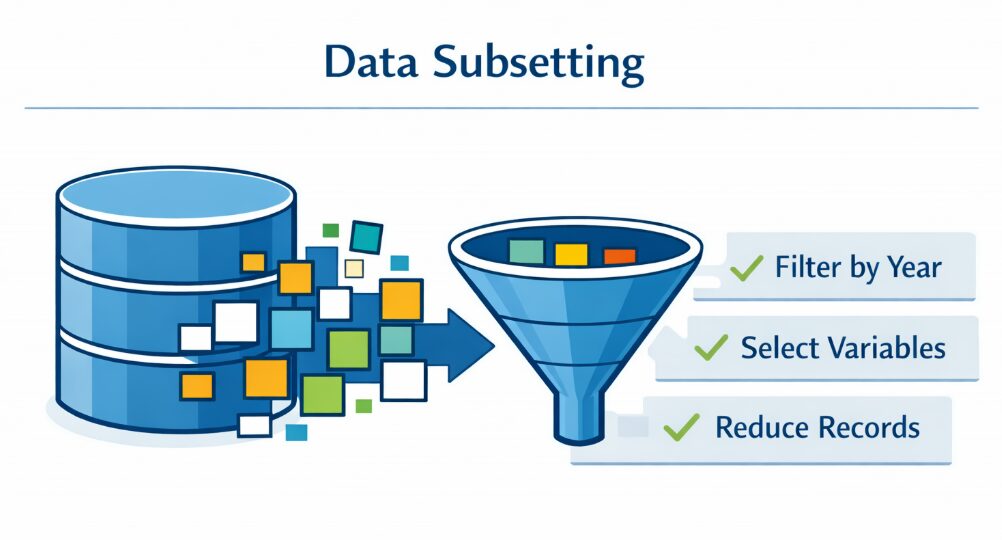
Many external datasets contain millions of records. Before aggregating or merging, create a subset that includes only the variables and observations relevant to your analysis. Filter by key variables like year, population group, or geographic area. Subsetting helps you:
- Verify variable names and spellings (e.g., consistent state names)
- Identify and correct missing geographic entries
- Keep files small and easier to merge when linking external sources
Aggregating Data by Geographic Units
Vesta operates at the geographic unit level, meaning each area needs a single record. If your dataset includes multiple observations per area (like individuals within a state or county), you’ll need to aggregate before import. However, if your data contains point data (latitude/longitude), aggregation to geographic units is not necessary; Vesta can work directly with point-level observations. Note—Aggregation may be skipped if you have point data.
Choose your aggregation method based on your research question:
- Proportion (%) – Best for categorical responses, like the percentage of youth reporting depression symptoms
- Mean or Median – Best for continuous measures, like average income or BMI by county
Ready to Import Your Data?
Once you’ve completed these preparation steps, you’re ready to bring your data into Vesta!
If you have any questions regarding your data preparation or bringing your data into Vesta, contact us at support@biomedware.com