Navigating Vesta
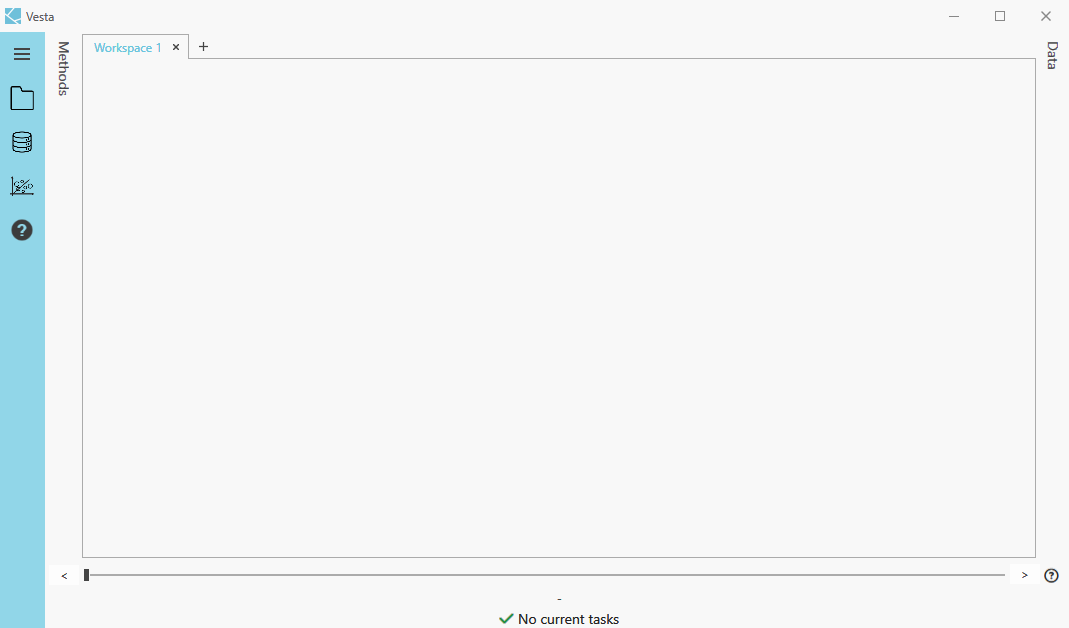
When Vesta is opened, the user will see the main screen.
Workspace
The workspace area is in the middle. New workspaces can be added by selecting the "+" symbol next to the workspace tab, and any workspace tab can be renamed by double-clicking on it and then hitting "enter" on the keyboard. Any visualizations or reports created are automatically displayed in the workspace area (up to four visualizations will display in one workspace at a time.) Workspace tabs now look and behave like browser tabs.
Note that the timeslider is no longer visible at all times. It is displayed at the top of the workspace for time-enabled data, when loaded into Vesta.
A Grid, Focus, or Compare toggle arranges the workspace layout — Grid shows all views at once, Focus enlarges one, and Compare places views side by side — with a shared Statistics panel that follows the current time step.
Main Menu
The main menu panel is to the left, organized as a rail of hubs.
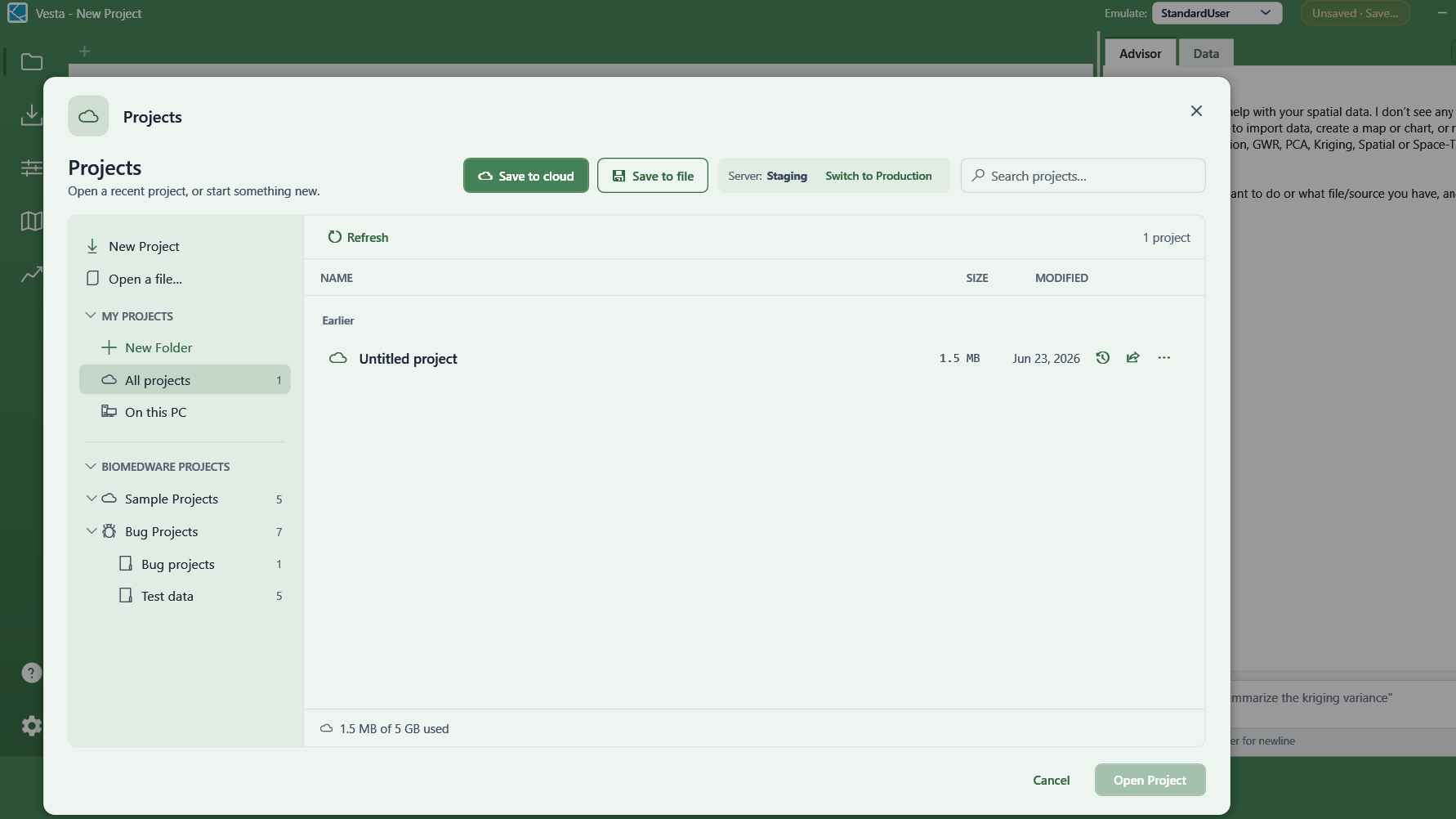
Projects
Start a new project, open a recent or cloud project, and save to a local file or to the cloud. See Starting or Opening a Project.
Add Data
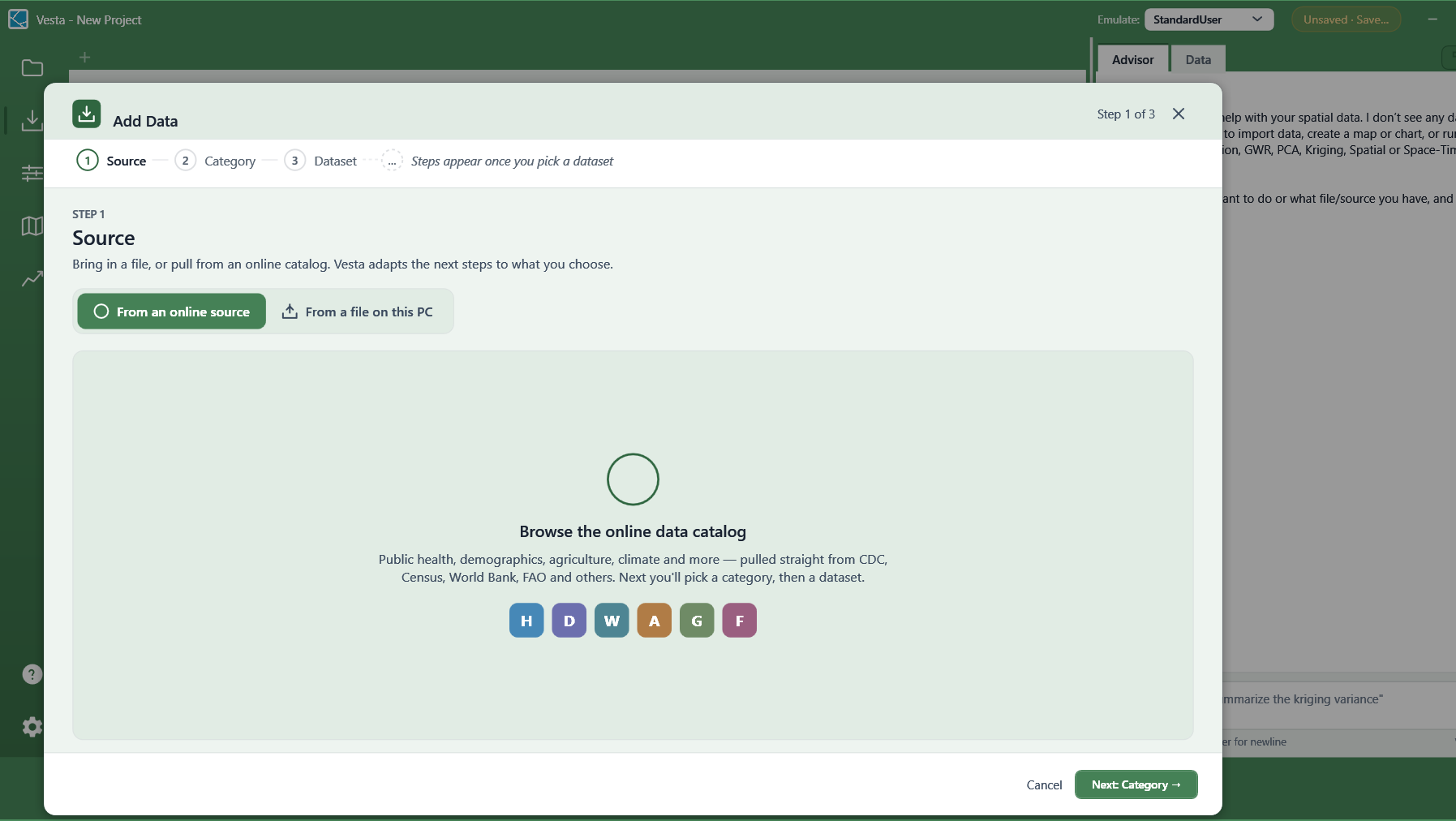
A guided three-step wizard: choose an online source or a file on your computer, pick a category, then pick a dataset. Online sources cover public health, demographics, agriculture, climate, and more, pulled from sources like CDC, Census, World Bank, and FAO. See Importing Data.
Preprocess
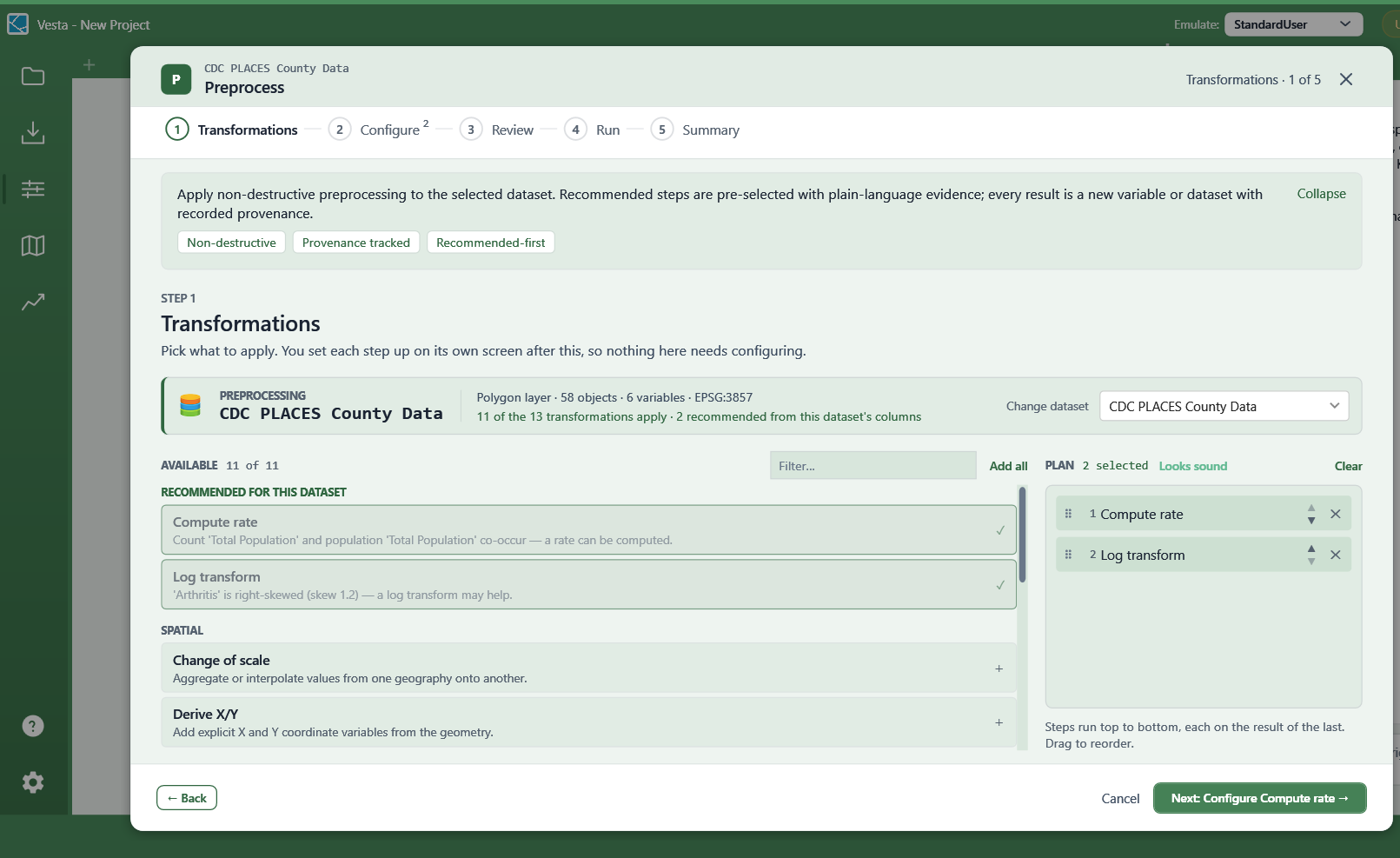
Apply changes to a dataset, such as computing a rate, standardizing, or clipping, without importing anything new. Recommended steps are suggested automatically, and you control the order they run in.
Visualize
Build a workspace either by describing what you want to see or by choosing manually from a catalog, with a live preview before you commit. See Introduction to Visualizations.
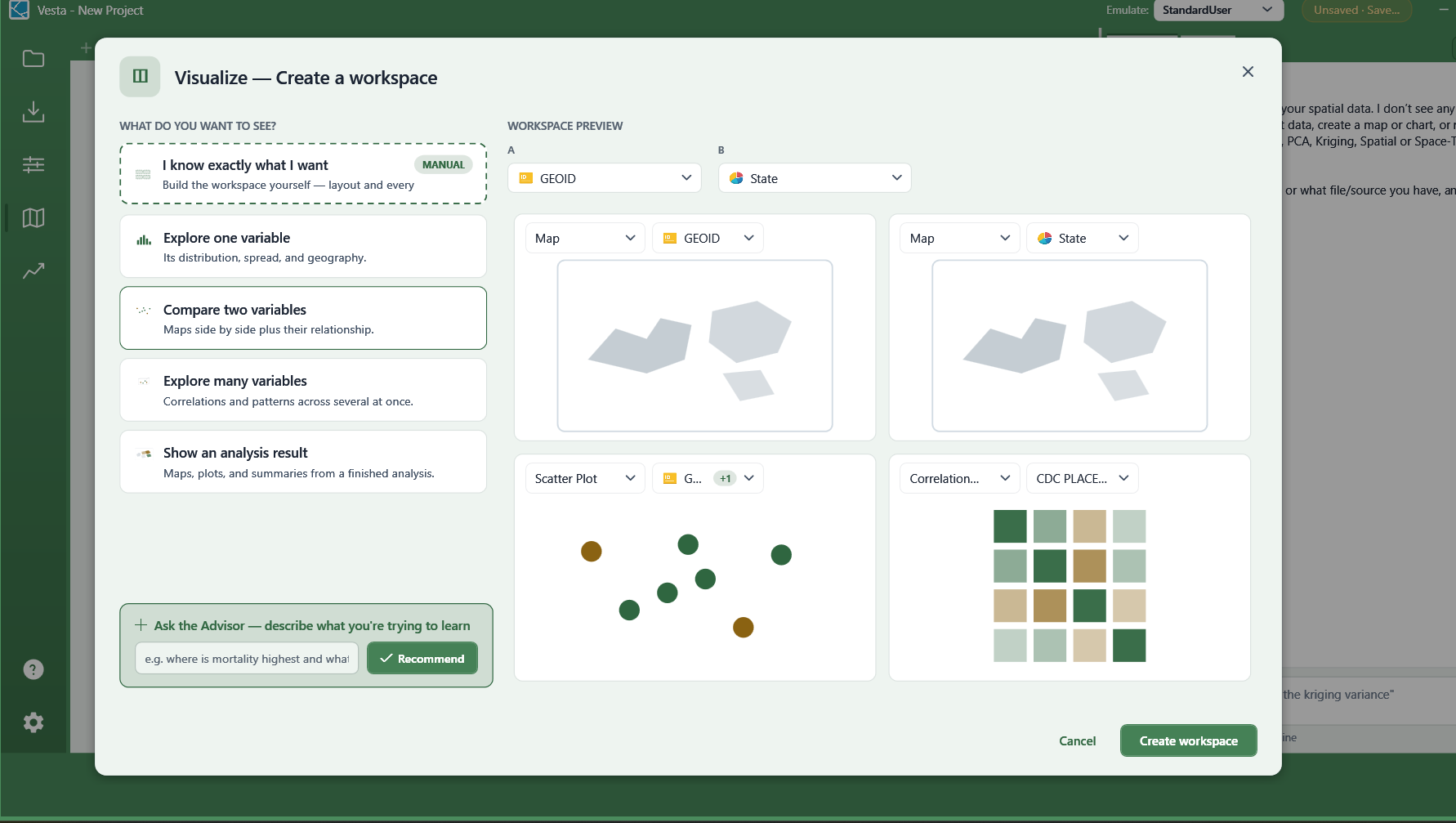
Analyze
Run an analysis method. See Analysis Introduction.
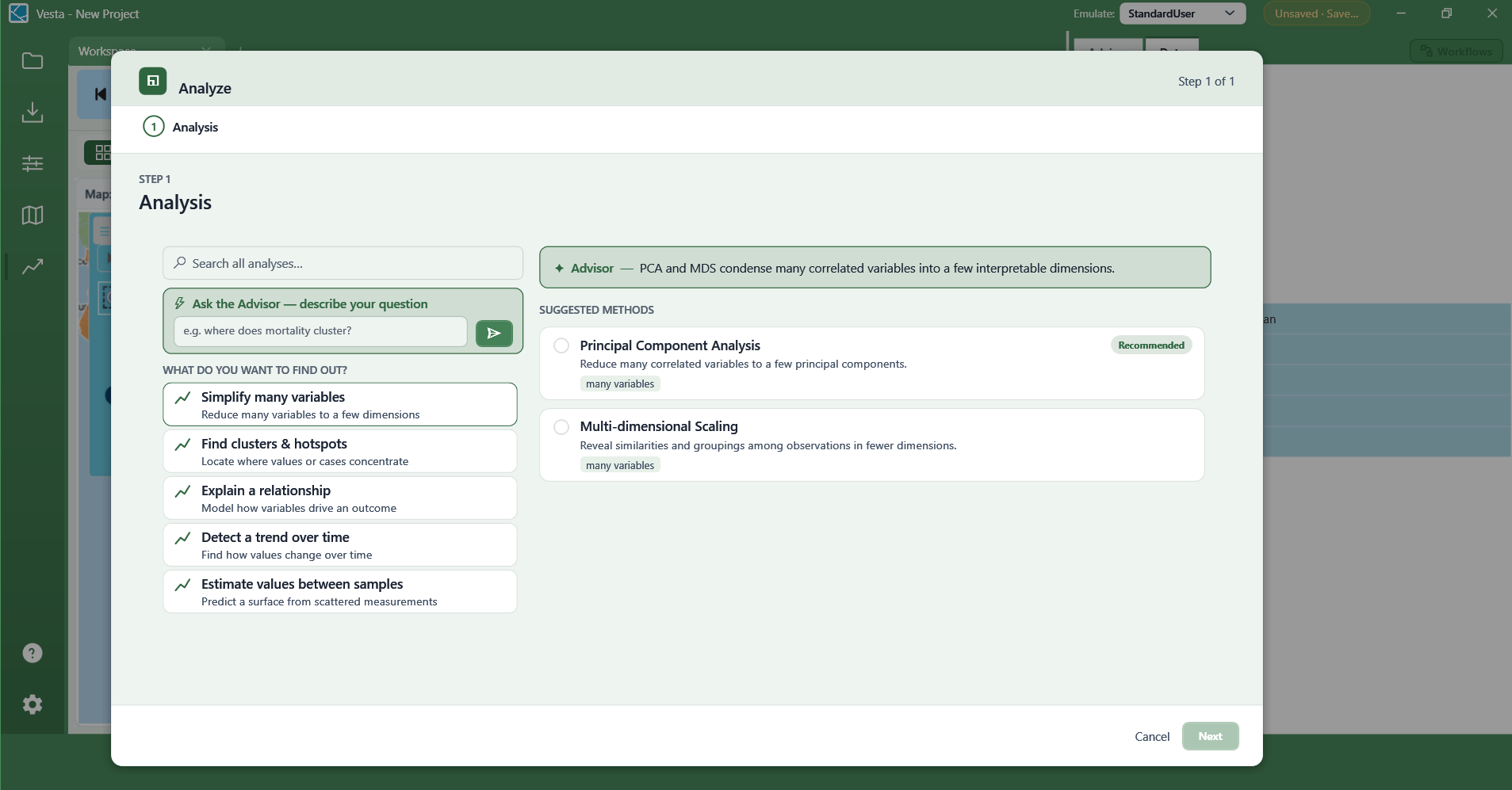
Below a divider are two more icons.
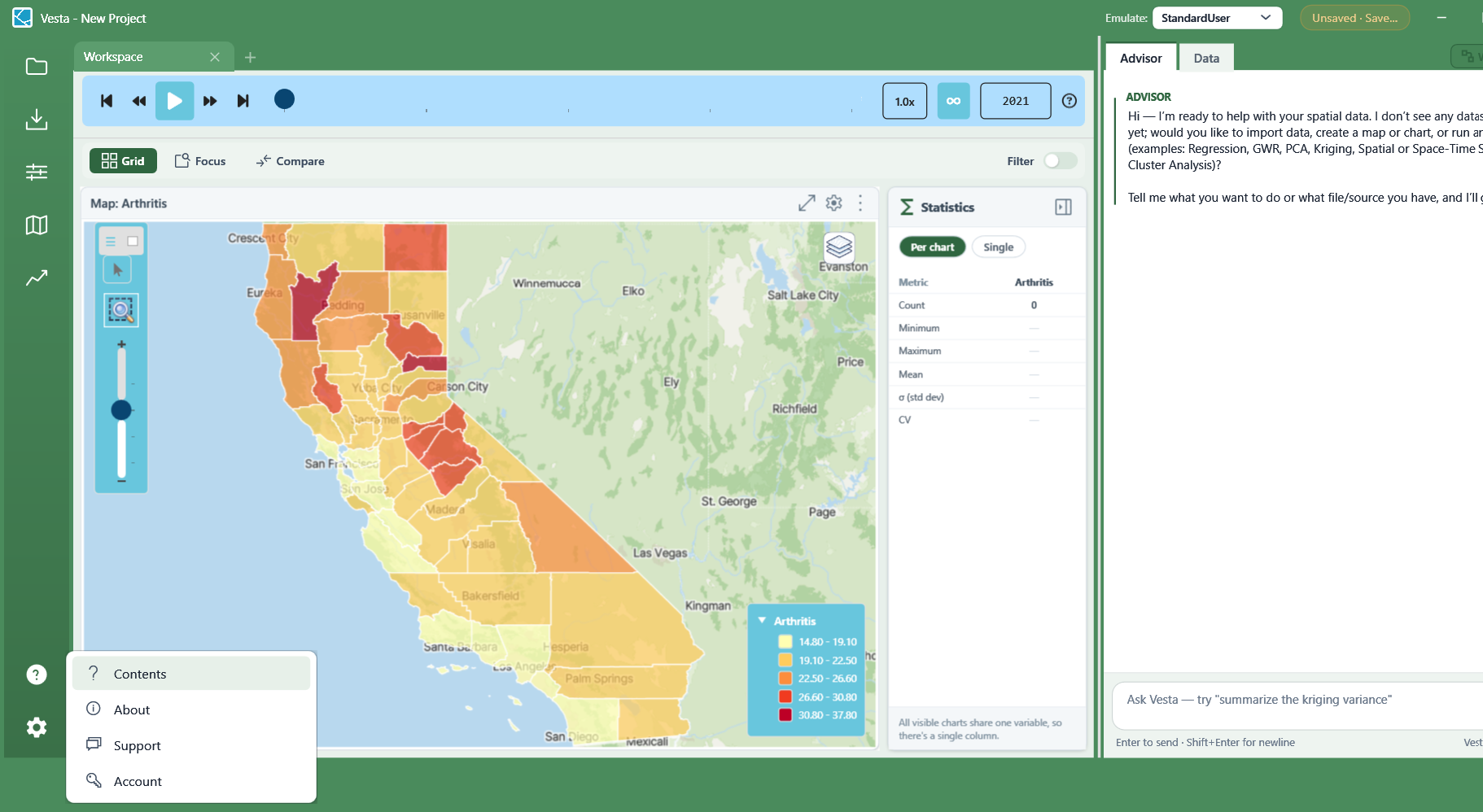
Help
Opens a short menu: Contents (this documentation), About, Support, and Account.
Settings
Opens Application Settings, described below.
Application Settings
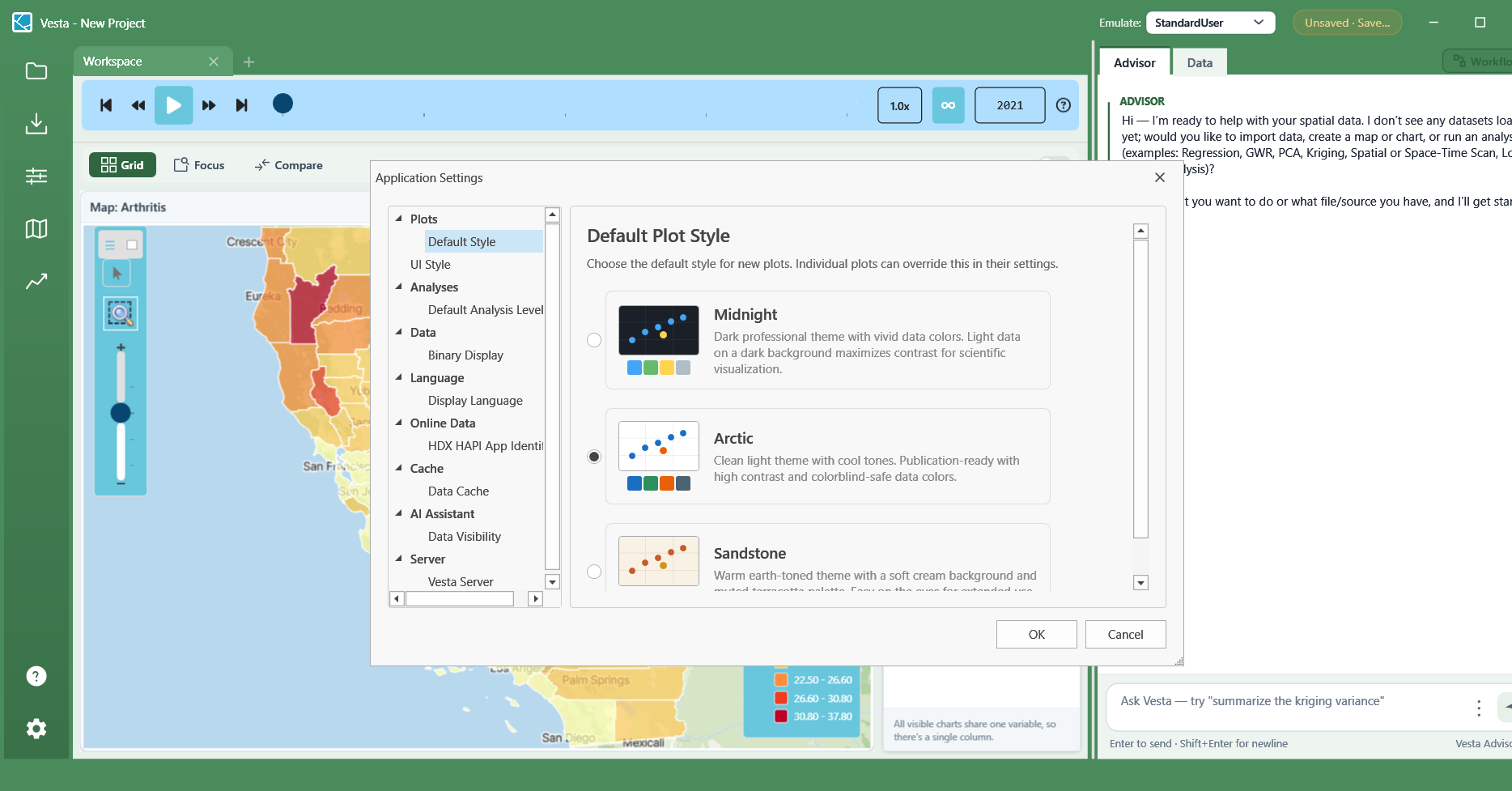
Settings let users set their preferred application settings when using Vesta. Once set, Vesta remembers the preferences across new projects and even after Vesta is relaunched. Users can change these settings at any time to update preferences. Preferences are reset when Vesta updates.
Settings are organized as a category tree on the left, with options for the selected category shown on the right:
- Plots — Default Style, where you choose a color theme (such as Midnight, Arctic, or Sandstone) applied to new plots, and UI Style, for the overall application look.
- Analyses — Default Analysis Level, controlling how many parameters are shown by default when configuring an analysis.
- Data — Binary Display, controlling how binary variables are displayed in tables, map legends, and chart axes.
- Language — Display Language for the interface.
- Online Data — configuration for online data sources, such as an HDX HAPI application identifier.
- Cache — manage locally cached data, such as the offline boundaries used by Clip to Area.
- AI Assistant — Data Visibility, controlling what the Advisor can see. See the Vesta Advisor page.
Vesta Advisor
To learn more about the Vesta Advisor, visit the dedicated Advisor page.
Data Panel
The Data panel to the right is automatically hidden by the Advisor Panel when Vesta launches. The user can toggle between the Advisor panel and the Data Panel.