Preprocess
Preprocess lets you apply changes to a dataset already in your project — computing a rate, standardizing a variable, clipping to an area, and more — without importing anything new. Every step is non-destructive: results are written as a new variable or a new dataset, and the original is left as it is.
Reached from the Preprocess hub in the main rail (see Navigating Vesta), or directly from the Summary screen after an import (see Importing Data).
Available Transformations
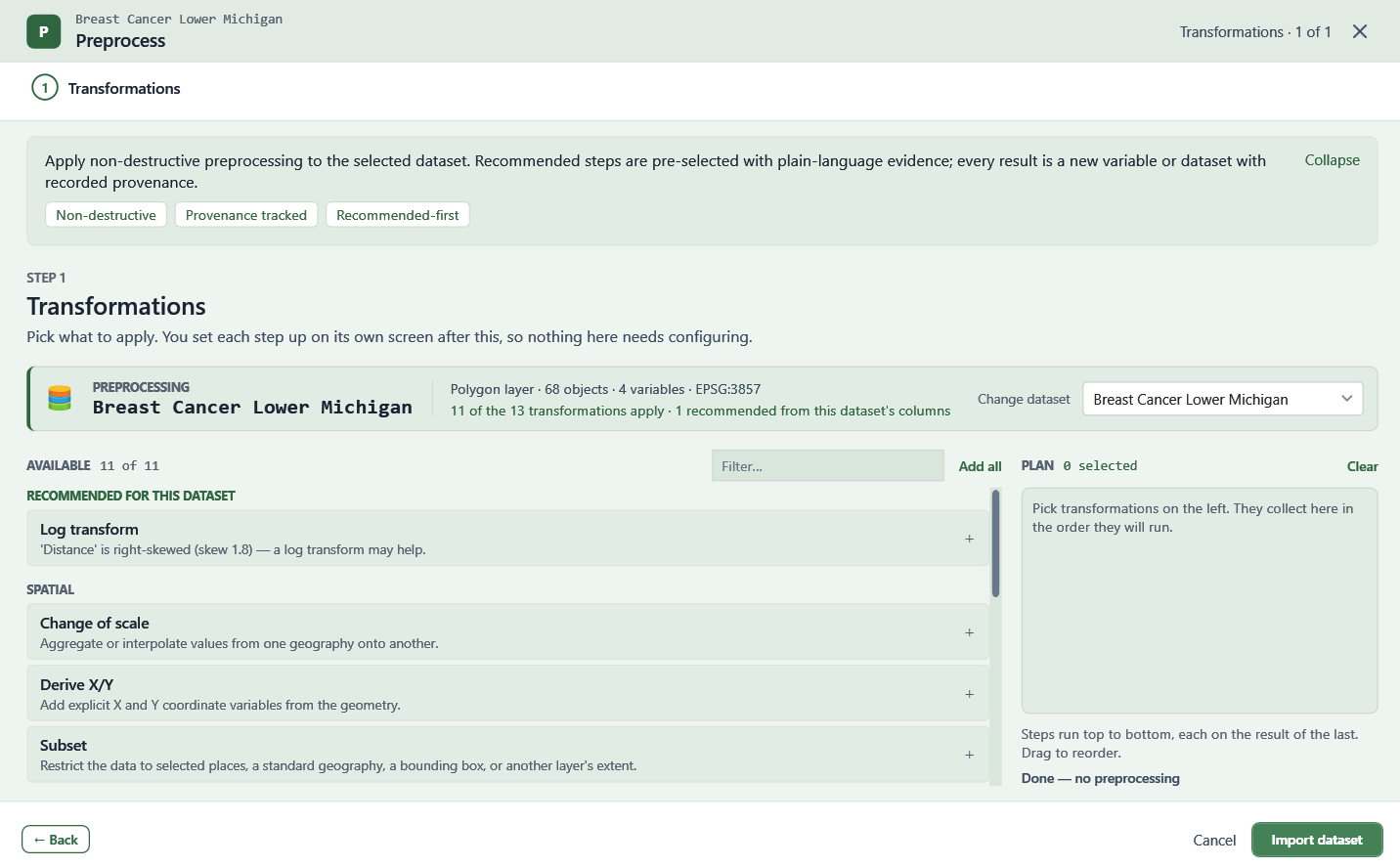
Vesta recommends steps for the selected dataset automatically, with plain-language evidence for each suggestion (for example, "'Distance' is right-skewed (skew 1.8) — a log transform may help"). Only transformations that apply to the dataset's own columns and geometry are shown — up to 13 in total, depending on the dataset.
Spatial
- Change of scale — aggregate or interpolate values from one geography onto another. See Changing Geographic Scale for how this is calculated.
- Derive X/Y — add explicit X and Y coordinate variables from the geometry. See X- and Y-Coordinate Generation.
- Subset — restrict the data to selected places, a standard geography, a bounding box, or another layer's extent.
- Reproject — tag data missing a coordinate reference system (CRS), or transform it from its current CRS to a target CRS.
Tabular
- Convert to categorical — turn a low-cardinality numeric or text column into a categorical variable.
- Create binary variable — derive a 0/1 indicator from a condition on a source variable. See Other Data Modifications.
Derived & Statistical
- Compute rate — divide a count by a population and scale it to a standard rate. Also works on a numeric raster with two or more bands, dividing one band by another.
- Stabilize rate — Empirical-Bayes smoothing for small denominators, so raw rates aren't unstable.
- Standardize (z-score) — rescale a numeric variable to zero mean and unit variance. Also available for numeric rasters, standardized cell by cell.
- Normalize (min-max) — rescale a numeric variable into the 0–1 range. Also available for numeric rasters, normalized cell by cell.
- Log transform — compresses large values and spreads small ones, pulling a long right tail toward symmetry. Offers a choice of natural log (ln) or log10. Zero and negative values return a missing value rather than an error.
Process Steps
Step 1: Transformations
Pick one or more transformations to apply to the selected dataset. Each one is added to a plan on the right, in the order it will run — steps run top to bottom, each on the result of the one before it, and can be dragged to reorder.
Step 2: Configure
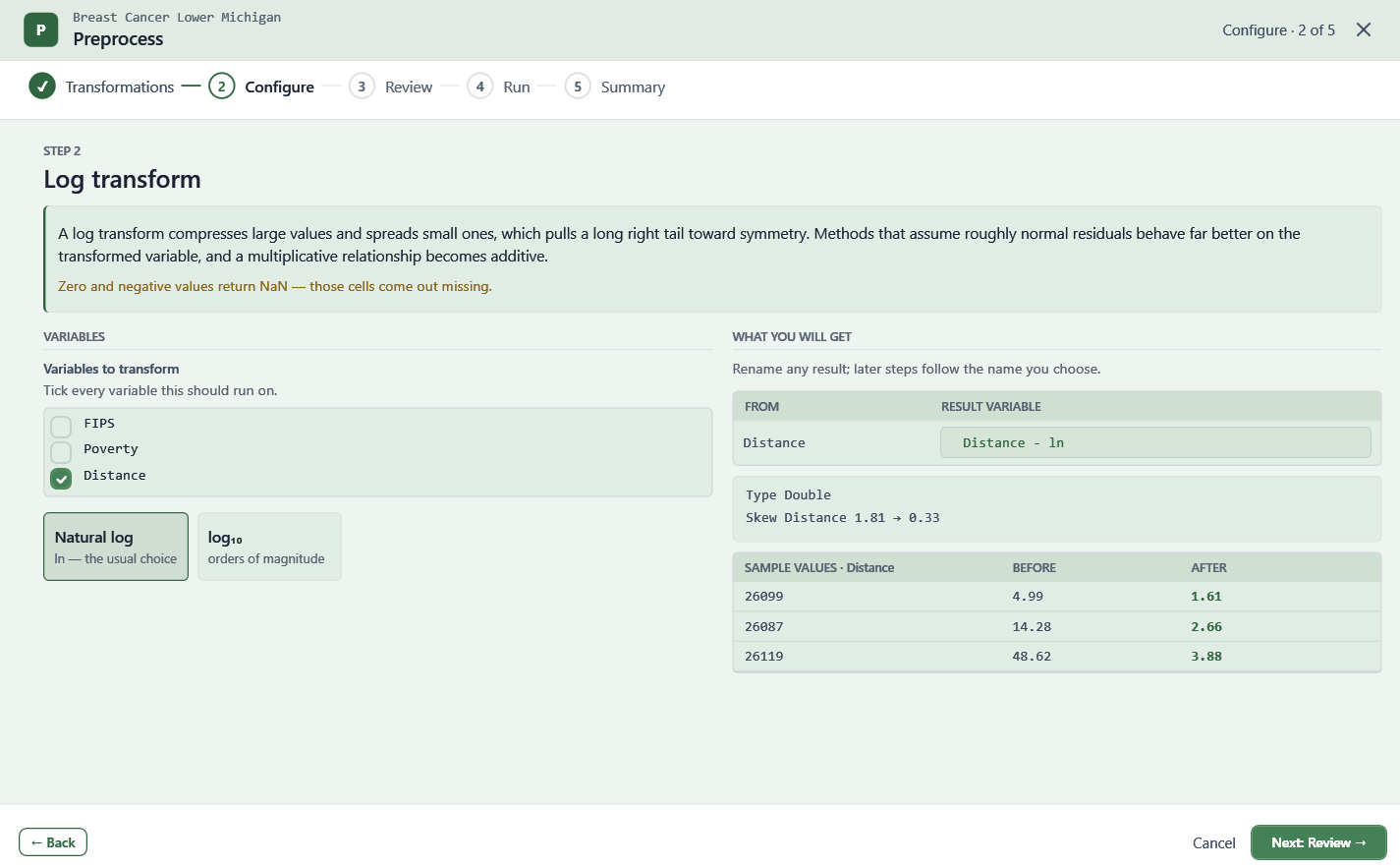
Each transformation has its own configuration screen. For example, configuring a Log transform lets you choose which variables to include and whether to use natural log or log10, and shows the effect before running — including the change in skew and a few sample before/after values. The result variable can be renamed; later steps follow the name you choose.
Step 3: Review
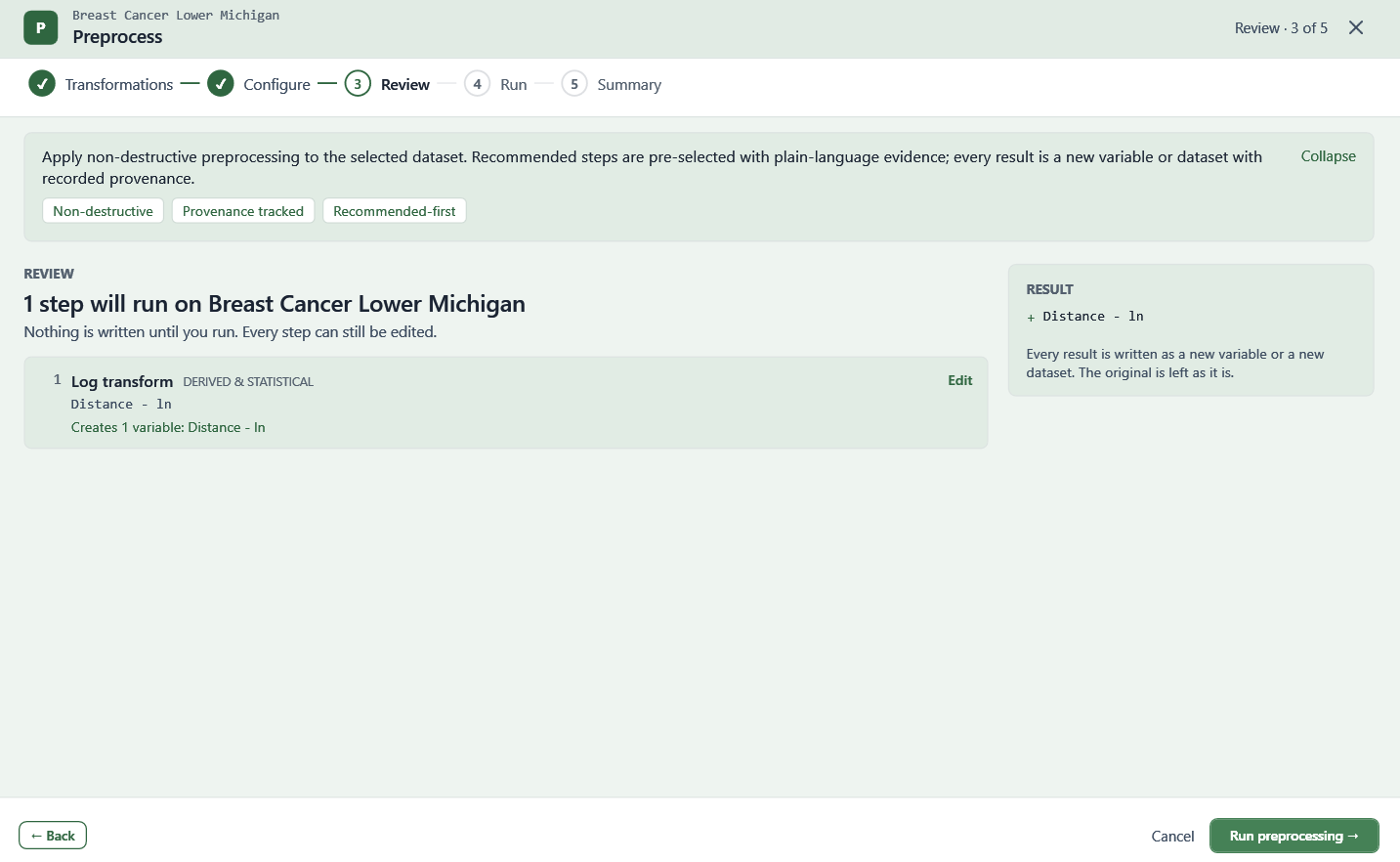
A recap of every step in the plan, in order, with what each one will produce. Nothing is written until you run it, and any step can still be edited.
Step 4: Run
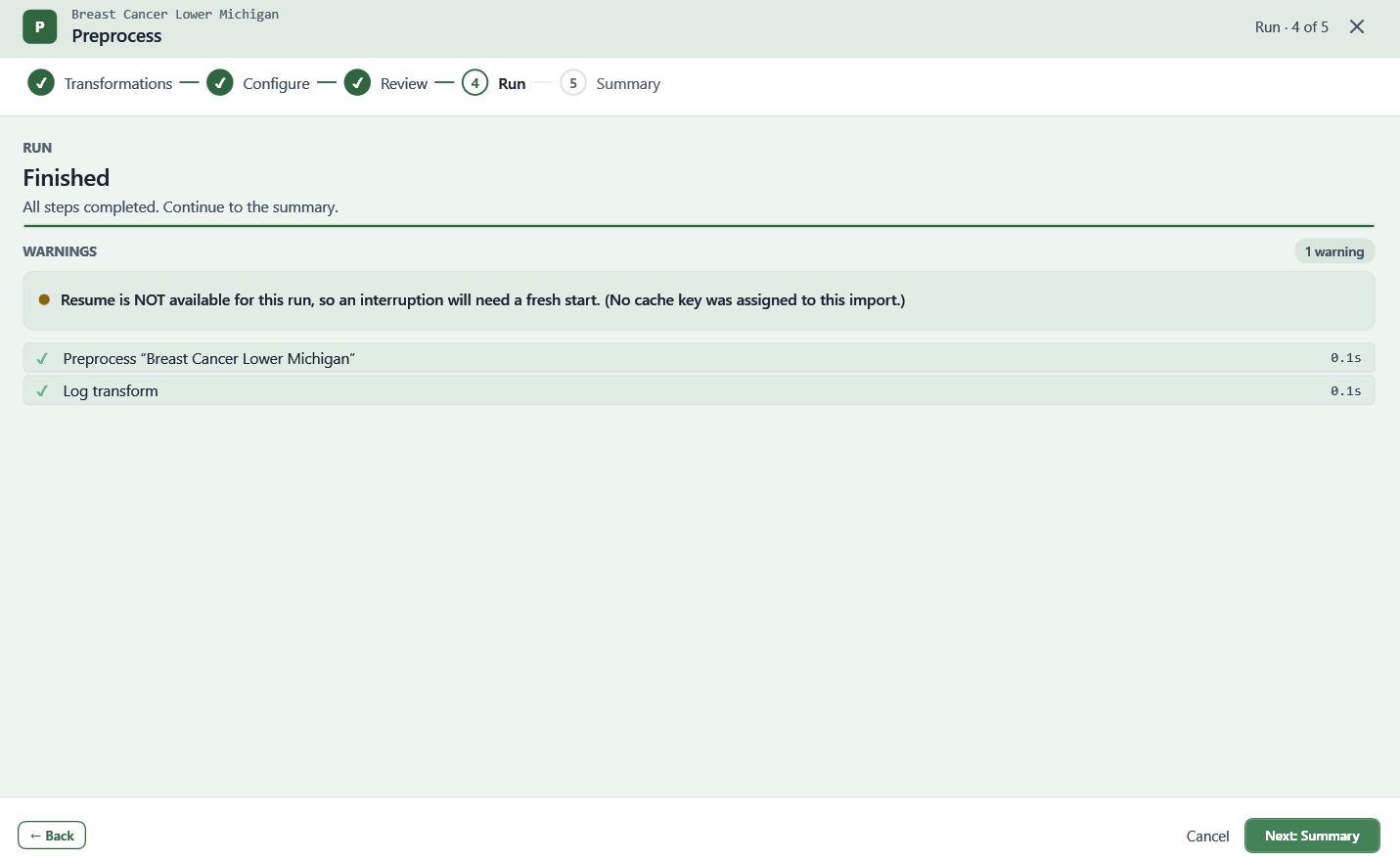
The plan runs, with progress shown as it goes.
Step 5: Summary
Shows what was applied, the resulting dataset's size, and how many entries were recorded to its provenance. From here, you can save the plan as a reusable workflow (see Workflows) — unlike an import workflow, a preprocessing workflow can be applied to any dataset, matching the target dataset and its variables by name, and asking about anything that doesn't match.
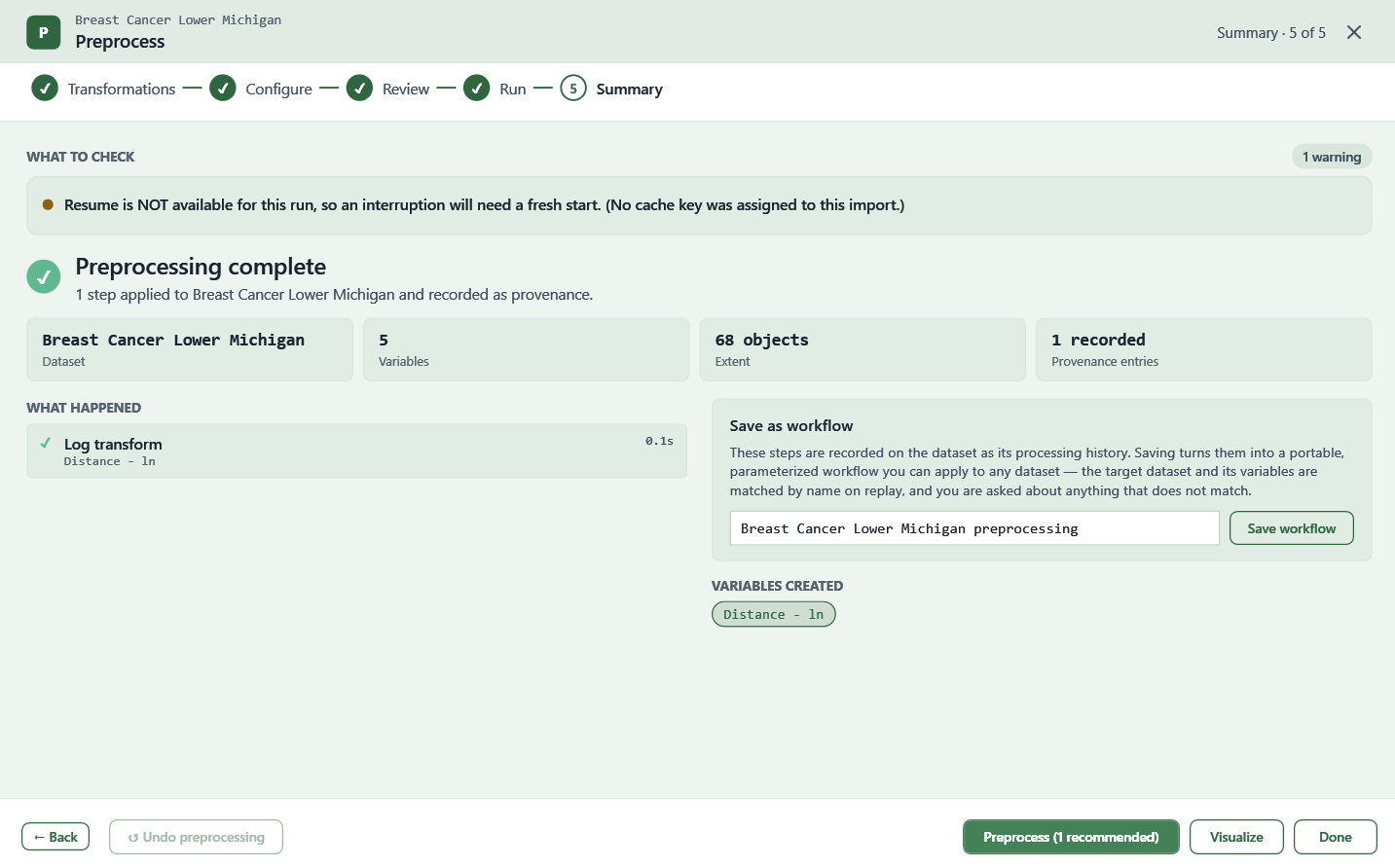
From the Summary screen, you can also undo the preprocessing just applied, run another round of preprocessing, continue to Visualize, or finish.